Revit vs Navisworks for MEP Clash Detection — When to Use Which
Revit and Navisworks serve complementary roles in MEP clash detection. The practical answer for most projects is to use both — here's when to use each.
Revit and Navisworks serve complementary roles in MEP clash detection. Revit's interference check works best for design-stage coordination within a small number of linked models, offering the advantage of resolving clashes in the same environment where you find them. Navisworks Clash Detective excels at federated multi-discipline detection across large projects, handling Revit, Tekla, AutoCAD, IFC, and point cloud data with tolerance-based rules and intelligent grouping. The practical answer for most MEP coordination projects is to use both — Revit for ongoing design-stage resolution, Navisworks for periodic full-federated validation.
Here's when to use each, where each falls short, and the workflow that gets the best results from both.
Revit Interference Check
| Strengths | Limitations |
|---|---|
| Resolves clashes in the modelling environment | Returns thousands of ungrouped instances on large projects |
| No export/import cycle needed | No tolerance-based (soft) clash detection |
| Efficient for small-to-medium linked models | Cannot federate non-Revit models (Tekla, AutoSprink, IFC) |
| Immediate context for resolution decisions | Performance degrades on large federated datasets |
Revit's interference check identifies hard clashes between elements within a single model or linked models. The advantage is context: when you find a clash, you're already in the modelling environment and can resolve it immediately. For projects managed within a few linked Revit files, this workflow is efficient and often sufficient.
Where it falls short: on large projects, Revit returns thousands of ungrouped clash instances — many duplicates. Without intelligent grouping, the team spends more time managing reports than resolving problems. And critically, Revit can't do tolerance-based detection. A pipe 5mm from a cable tray isn't a hard clash, but it's not acceptable clearance either.
Navisworks Clash Detective
| Strengths | Limitations |
|---|---|
| Federates Revit, Tekla, AutoCAD, IFC, point clouds | Read-only — can't resolve clashes directly |
| Tolerance-based soft clash detection | Requires intelligent configuration |
| Intelligent clash grouping and reporting | Round-trip to Revit adds time |
| 4D simulation identifies temporal clashes | Poorly defined tests drown teams in false positives |
| Handles large datasets without performance issues |
Navisworks federates geometry from multiple platforms into a single coordination environment. Its Clash Detective groups related clashes, applies tolerance rules, and generates structured reports — capabilities essential for complex multi-discipline projects. As documented in Autodesk's Navisworks documentation, the tool supports clash tests between any combination of selection sets with customisable tolerance values.
On a recent data centre project, our federated model contained mechanical, electrical, plumbing, fire protection, structural steel, architectural elements, and point cloud data. Navisworks handled this dataset without the performance issues Revit would have experienced.
The 4D simulation capability also identifies temporal clashes — two trades programmed to occupy the same zone simultaneously. This sequencing analysis, aligned with the buildingSMART IFC standards for information exchange, is impossible in Revit.
The Practical Workflow
The workflow that delivers the best results:
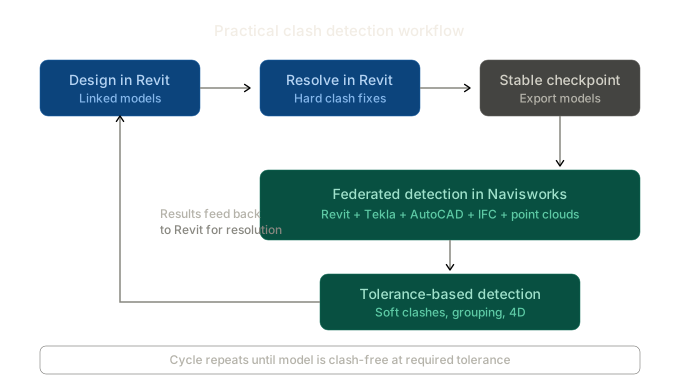
Design-stage coordination happens in Revit. Coordinators resolve clashes within and between linked models as they work, maintaining momentum without export cycles.
At each stable checkpoint, models export to Navisworks for full federated detection with tolerance rules. This catches soft clashes, cross-platform conflicts (Tekla steel vs Revit MEP), and sequencing issues that Revit can't detect.
Results feed back to Revit for resolution. The cycle repeats until the model is clash-free at the required tolerance — typically 25mm for hard clashes and 50mm for soft clashes on most commercial projects, tighter on data centres and hospitals.
Neither tool alone is sufficient. Revit without Navisworks misses the big picture. Navisworks without Revit can't fix what it finds. The coordinator's skill is knowing when to use which — and understanding that what makes coordination good isn't the software, it's the experience of the person using it.
"We stopped running QA checks on AM's outputs — consistently accurate enough to deploy without review."
— Wojtek Kaczmarek, BIM Manager, Automatic Fire
Send us your current coordination setup and we'll review it — free, no obligation. If there are gaps, we'll tell you what they are and how to fix them. If you need coordination support, we'll provide a fixed-price proposal within 48 hours.
Frequently Asked Questions
Should I use Revit or Navisworks for clash detection?
Both, at different stages. Use Revit's interference check for ongoing design-stage coordination within linked models. Use Navisworks Clash Detective for periodic full-federated validation with tolerance rules across all disciplines and platforms.
Can Revit do soft clash detection?
No. Revit's interference check only identifies hard clashes (geometric intersections). Soft clash detection — identifying elements within a defined clearance tolerance — requires Navisworks or equivalent federated clash detection software.
What clash tolerance should I use in Navisworks?
Typical tolerances are 25mm for hard clashes and 50mm for soft clashes on commercial projects. Data centres and healthcare projects often require tighter tolerances due to the density of services and stricter clearance requirements.
What is a 4D clash in Navisworks?
A 4D (temporal) clash occurs when two trades are programmed to occupy the same zone simultaneously — not a spatial conflict, but a sequencing conflict. Navisworks 4D simulation links the model to the construction programme to identify these scheduling clashes.